Add a User
Click the
 button located under the company overview.
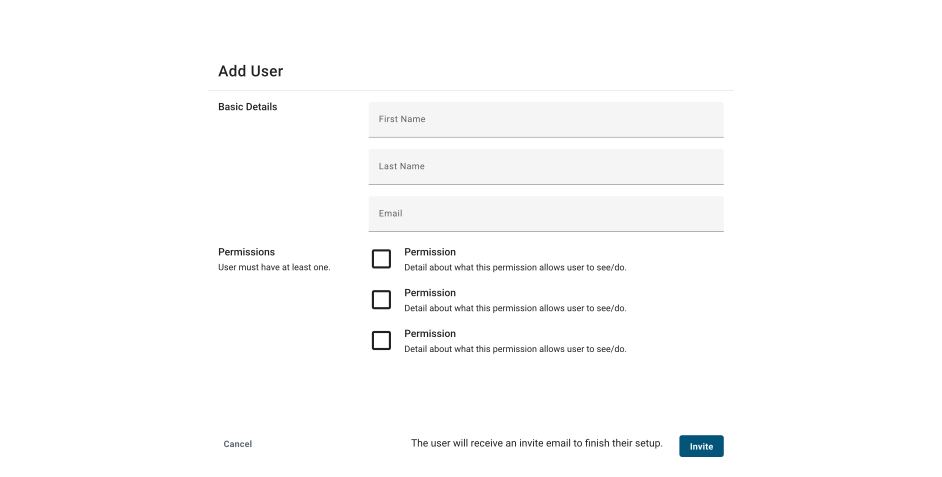
A window will open and you will be asked to input the user's name, email, and permissions
To add the user's name and email select the text box add type in the first name, last name and valid email.
To set user's permissions read over each permission and select by clicking the checkbox next to each type.
- Select all that apply, atleast one permission must be selected.
- Once complete, click the
 button located at the bottom right corner of the window.
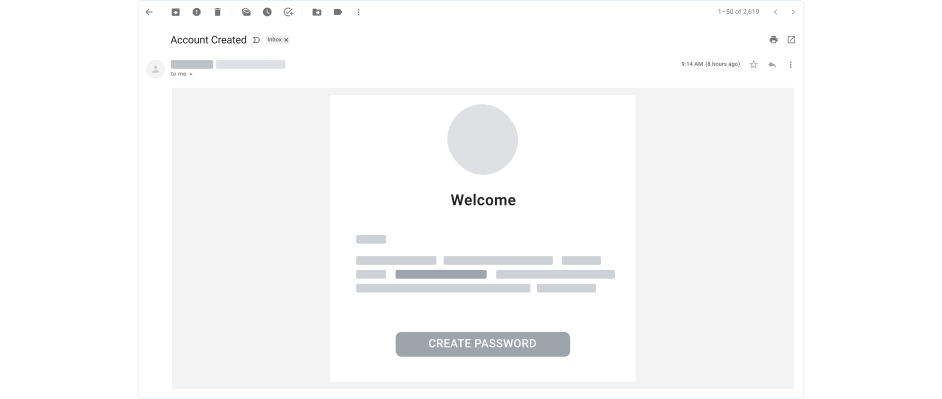
Sign Up Email
An email will be sent to the new user where they will continue the sign up process.
Errors
Select the error message that matches your problem to get an explanation and a solution.
User did not receive the sign up email.
Gave user highest access but they can't see everything.
Missing Sign Up Email
There could be a number of reasons why the user has not received their sign up email.
Ask the user to check their spam folder.
Verify the email is correct.
If the email was incorrect please insert the correct email and reinvite user.
Click here to learn how to editing a user.
Click here to learn how to reinvite a user.
Missing Access
Must select all permissions that apply not only what you think is the highest level.